
This is the demo evaluation site for the Cart-to-Quote for WooCommerce plugin by Power Plugins.
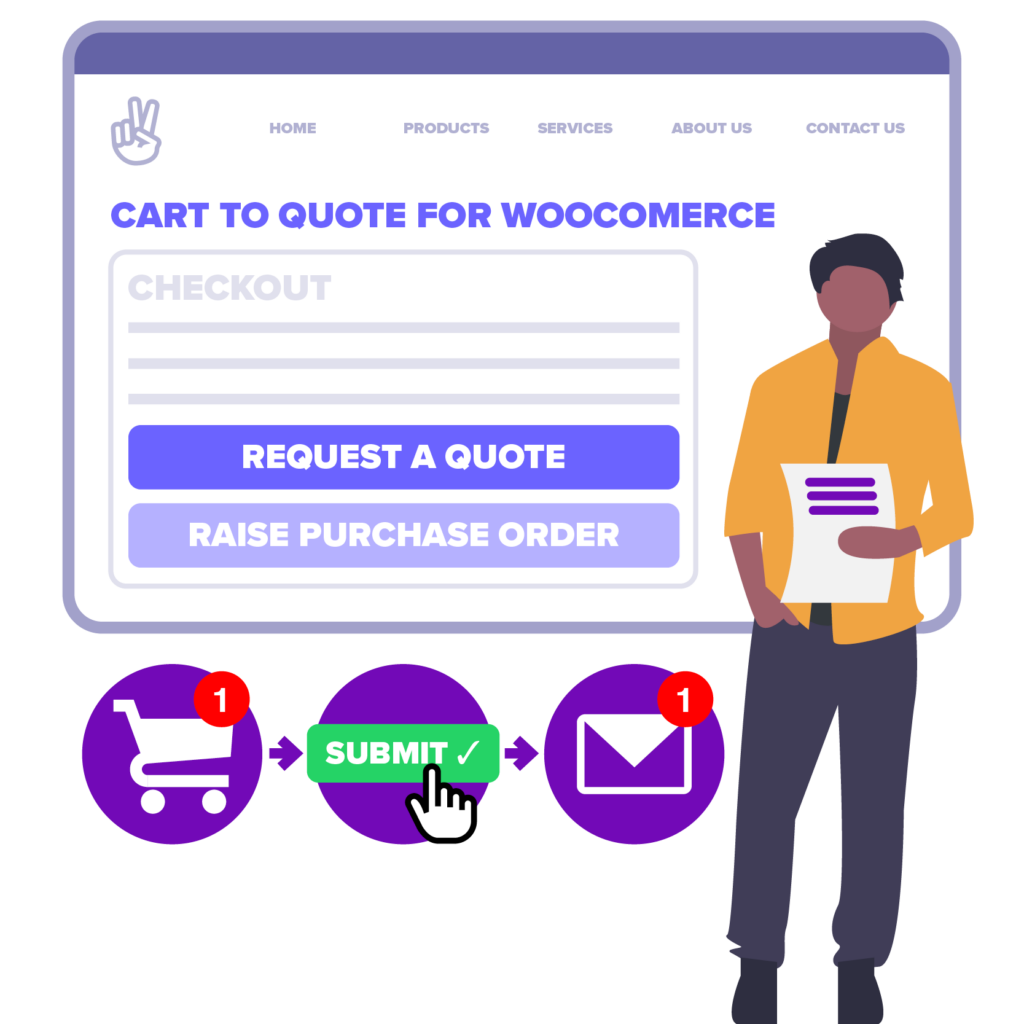
How to use the demo site…
To use this demo site, you’ll have two login accounts. These let you interact with the store from the Customer’s point-of-view, and as a Shop Manager. So, you’ll need to have access to an email address for your ‘Shop Manager’ account, and a different email address for your ‘Customer’ account.
There are two methods available with the Cart-to-Quote plugin:
1. Quotes when no shipping is available

- Using the admin account we’ve supplied, go to the back end of the site, WooCommerce > Settings and select the “Cart-to-Quote” tab. Make sure “Can any customer convert their cart into a quote?” is NOT checked.
- Log out of the site so that you’re operating as a guest. Then put something in your cart and go to the checkout.
NOTE: We’ve configured the site so it will only ship to United Kingdom postal addresses, so enter a non-UK address.
If you’re not sure what address to use, this should work:
13 Race Drive
Delaware
Ohio
43015
United States
…it’s a random fake address but will validate successfully at the checkout. Make sure you enter a valid email address though, so you’ll receive the email notifications from the site.
IMPORTANT: Make sure you check the ‘Create an Account?’ box.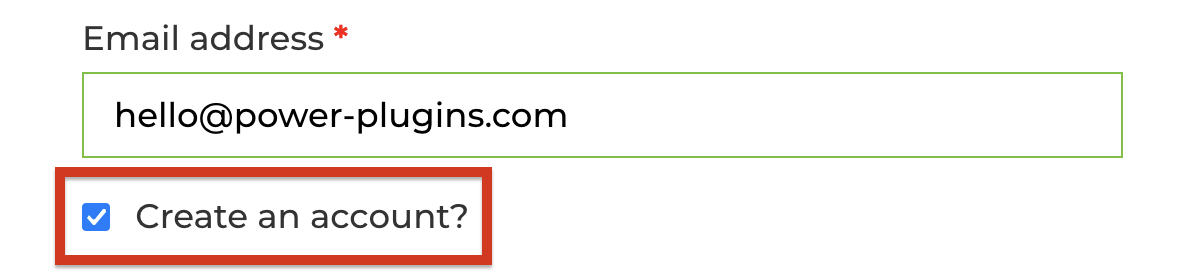
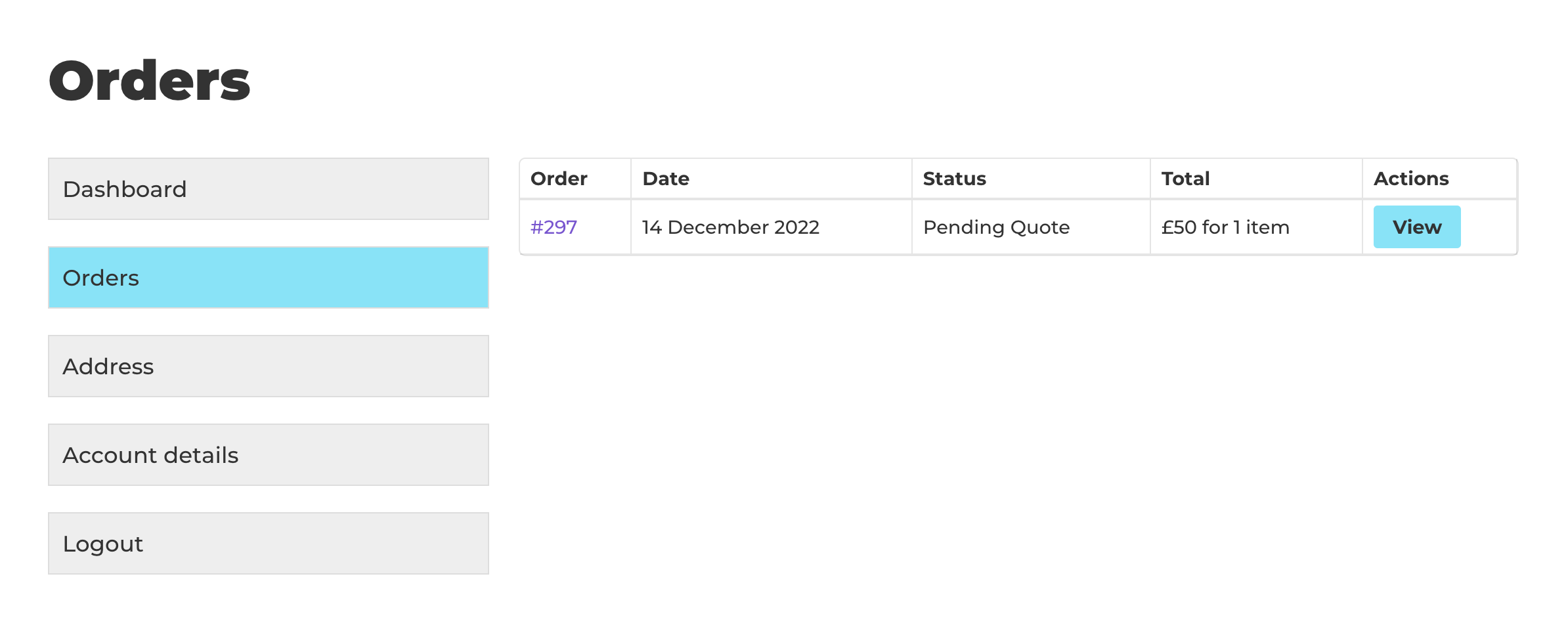
- Once you’ve requested a quote, you’ll have a customer account – check your email, log in to your customer account, and have a look at your quote. It’ll be shown as ‘Pending Review’ from the Shop Manager.
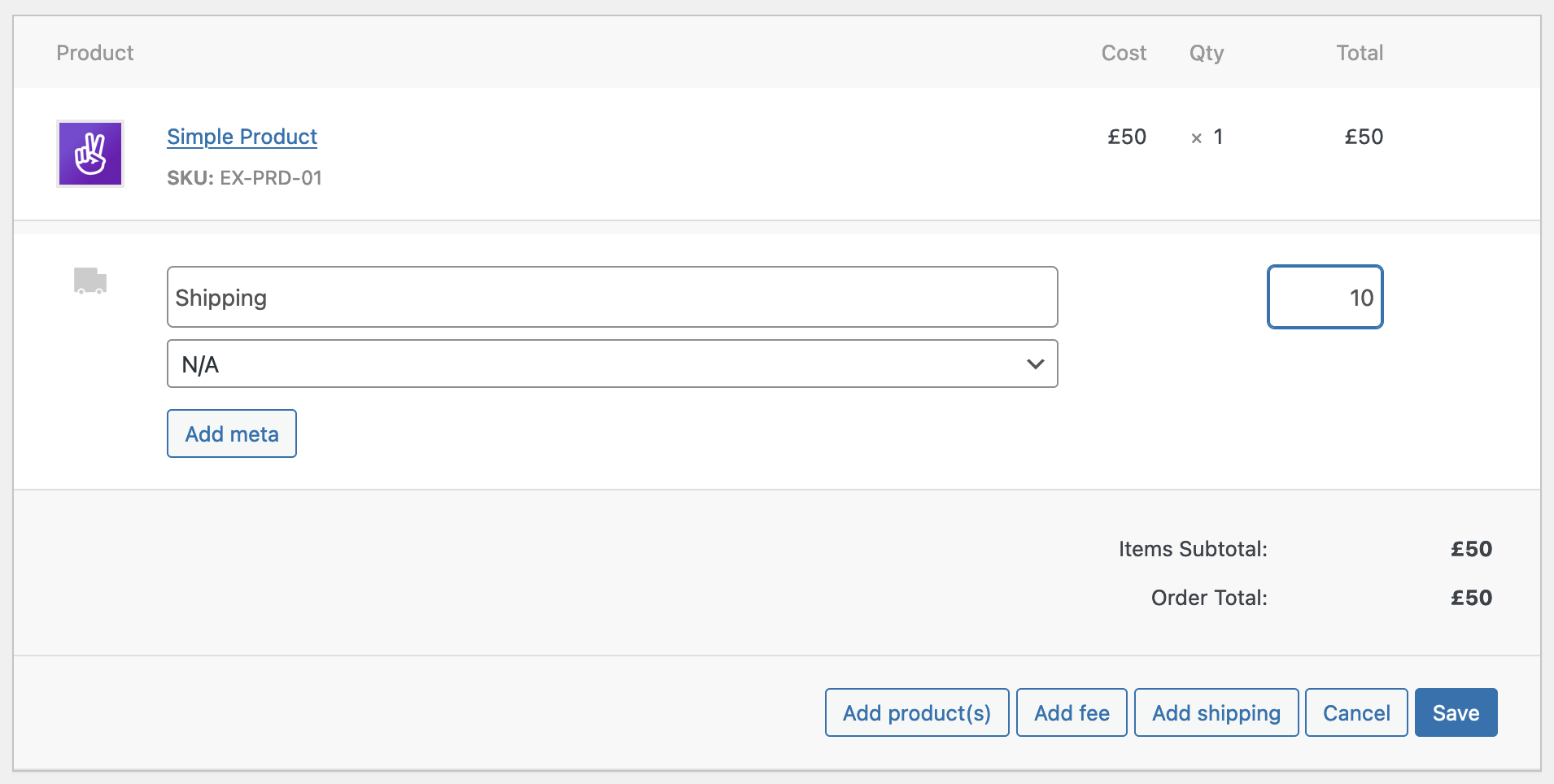
- Log back into the site with your demo Shop Manager account, then go to WooCommerce > Orders and edit the new Quote/Order. Add some shipping, hit Save, set the status to “Pending Payment”, then hit Update.
The system will send an email to the customer’s email address. - Log back in with the customer account and go to the “My Account” area. Notice the “Send to” button that lets you attach a note to the quote and send it to an email address. This is great when your customers need to get approval from their accounts department before they can raise a purchase order (PO) reference number.
- You can now pay the Quote/Order, cancel it or just walk away from the process. The quote will expire after a number of days (configurable – usually 30 days is OK).
2. Always show the quote button

The plugin can be configured to always show the quote button, regardless of whether a cart can be fully shipped, or not.
- Log in to the site with the Store Manager account, go to WooCommerce > Settings > Cart-to-Quote (tab) and check the box “Can any customer convert their cart into a quote?”. Save the settings and log out of the site.
- Now you’re a member of the public again, put something in your cart and go to the checkout. You’ll see the new button beneath the “Place Order” button
- Important: Make sure you’ve set “United Kingdom” as your shipping Country/Region, otherwise you will just see the “Request a Bespoke Quote” button because the shipping can’t be fulfilled.
- When you request a quote for an order that can actually be paid for, the system can work in one of two ways…
- If the quote can be fully shipped, the quote goes straight into a “Pending Payment” status (instead of “Pending Quote”). Some stores like to review all quotes before moving them to Pending Payment, whereas other stores like to only review quotes that can’t be easily shipped (i.e. add bespoke shipping values).
Developer friendly
Lots of the internals for Cart-to-Quote can be hooked and adjusted with code snippets. If it looks like the plugin doesn’t quite get you to where you need to be, drop us a line and we’ll see if the code can be extended/tweaked/hooked to your requirements.